
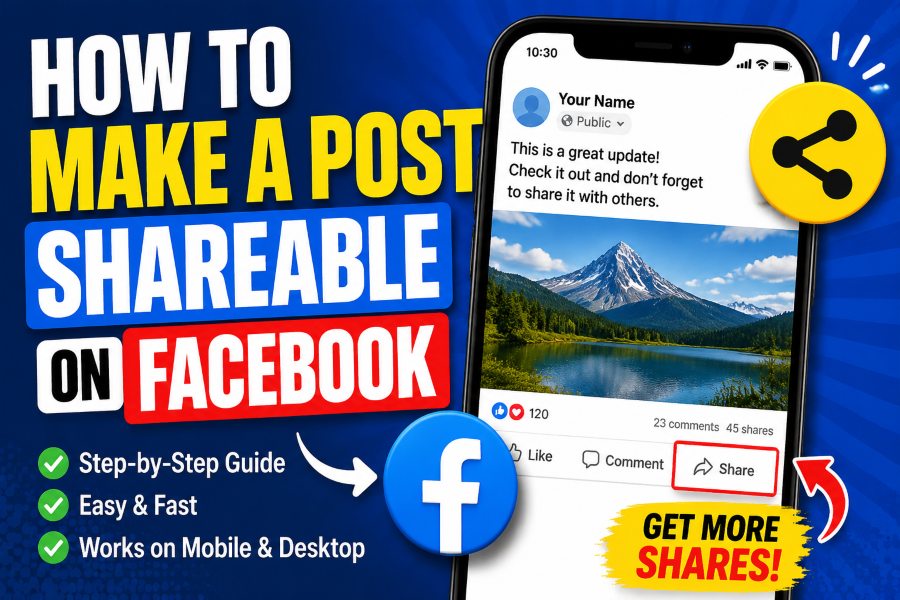
Creating a useful, entertaining, or informative Facebook post is only part of the process. To help that post reach more people, you may need to make it shareable. When sharing is enabled, other users can repost your content to their timelines, send it through Messenger, share it with a group, or add it to another supported location on Facebook.
However, many Facebook users discover that the Share button is missing from their posts. This usually happens because the post’s audience is restricted to Friends, Specific Friends, or another private setting.
Learning how to make a post shareable on Facebook is primarily about selecting the right audience. In most cases, changing the post’s privacy setting to Public allows people outside your immediate friend list to view and share it.
This guide explains how to make new and existing Facebook posts shareable on mobile devices and computers. It also covers Facebook Pages, groups, locked profiles, privacy concerns, and common reasons the Share button may not appear.
How to Make a Post Shareable on Facebook
To make a personal Facebook post shareable, change its audience setting to Public.
Facebook’s audience selector controls who can see your content. A Public post may be viewed by anyone, including people who are not your Facebook friends and, in some situations, people who are not signed into Facebook.
Follow these basic steps:
- Open Facebook and start creating a post.
- Select the audience button underneath your profile name.
- Choose Public.
- Add your text, image, video, or link.
- Publish the post.
Once the post is public, eligible viewers should be able to use the available sharing options. Remember that Facebook’s interface can vary slightly depending on your device, app version, account type, and location.
Why Is There No Share Button on My Facebook Post?
The most common reason there is no Share button is that the post was published to a limited audience.
For example, your post may be set to:
- Friends
- Friends except certain people
- Specific friends
- Close friends
- Only me
- A custom audience
Facebook does not allow another person to share your post with people who were not included in its original audience. A post shared with Friends, for example, cannot normally be reshared publicly because that would expose the content to users outside the audience you selected.
This restriction helps Facebook maintain the privacy setting chosen by the original poster. Even when a friend sees the post, that person cannot override your audience selection by sharing it publicly.
Making the post Public generally solves the problem for personal profile posts.
How to Make a Facebook Post Shareable on Mobile
The steps are similar whether you use the Facebook app on Android or iPhone.
Make a New Post Shareable on Mobile
- Open the Facebook app.
- Tap What’s on your mind?
- Locate the audience button underneath your name. It may currently say Friends, Only Me, or another option.
- Tap the audience button.
- Select Public.
- Tap Done if Facebook displays a confirmation option.
- Create your post.
- Tap Post.
The post should now display a globe icon, indicating that its audience is Public.
Before publishing, check the audience label carefully. Facebook may remember a previous audience selection or return to the default audience configured in your privacy settings.
Make an Existing Post Shareable on Mobile
You can also change the audience of a post that has already been published:
- Open the Facebook app.
- Tap your profile picture to visit your profile.
- Find the post you want people to share.
- Tap the three-dot menu in the upper-right corner of the post.
- Select Edit privacy or Edit audience.
- Choose Public.
- Save the change.
Depending on the app version, you may also be able to tap the audience icon next to the post’s date or timestamp and select Public directly.
Facebook confirms that users can change the audience of an existing post by opening the audience selector near its date or time and choosing a new audience.
How to Make a Facebook Post Shareable on a Computer
You can make a post shareable through the Facebook desktop website using the audience selector.
Make a New Post Shareable on Desktop
- Sign in to Facebook through your browser.
- Click What’s on your mind? at the top of your Feed or profile.
- Click the audience setting shown underneath your name.
- Choose Public.
- Write your message or add your media.
- Click Post.
Facebook’s official posting instructions state that users can click the audience selector while creating a post and choose who should be able to see it.
Make an Existing Post Shareable on Desktop
- Go to your Facebook profile.
- Scroll to the post you want to update.
- Find the audience icon next to the post’s date or time.
- Click the icon.
- Select Public.
You may also find an audience option inside the post’s three-dot menu. The exact label can differ depending on Facebook’s current interface.
After changing the audience, refresh the page and check whether sharing options appear beneath the post.
How to Make All Future Facebook Posts Public
Changing one post to Public does not always change the audience for every future post. Facebook allows you to update an individual post without changing your default posting audience.
To make Public the default audience for future personal posts on a computer:
- Click your profile picture in the upper-right corner.
- Select Settings & privacy.
- Open Settings.
- Scroll to Audience and visibility.
- Select Posts.
- Find Who can see your future posts?
- Change the setting to Public.
- Save or confirm the change.
Facebook notes that the default audience applies to future posts, while individual posts can still use a different audience through the audience selector.
Setting Public as the default can be useful for creators, business owners, public figures, community organizers, and marketers who regularly publish content intended for broad distribution.
However, it is safer to review the audience each time you post. A personal update that includes family information, travel plans, contact details, or private photos may not be appropriate for a public audience.
What Does Public Mean on Facebook?
A Public audience is broader than your Facebook friend list.
According to Facebook, content shared publicly can be seen by anyone, including people outside Facebook. Public posts may also appear on your profile, in Feed, and in Facebook search results.
Depending on Facebook’s features and the viewer’s account, a public post may be:
- Viewed by friends and non-friends
- Shared to another timeline
- Sent through Messenger
- Shared to a Page
- Shared in an eligible group
- Included in a story
- Copied as a direct post link
Available sharing options are not identical for every post. They can depend on the content format, where the post was originally published, account restrictions, and the viewer’s permissions.
Before making a post public, assume that it could reach people outside your intended network. Other users may also save screenshots or copy information from it even if you later change the privacy setting.
How to Make a Facebook Page Post Shareable
Facebook Pages are designed for public communication. Posts published directly by a business, brand, organization, or creator Page are generally intended for a public audience.
To publish a Page post:
- Switch into the Facebook Page you manage.
- Open the Page’s post composer.
- Add your text, image, video, offer, or link.
- Review the post.
- Click or tap Publish.
Facebook identifies Pages as public spaces, so Page content usually has wider visibility than content from a personal profile.
When a Page post cannot be shared, check whether:
- The post contains restricted content.
- The post was created inside a private group.
- The Page has age or country restrictions.
- The content format has limited sharing options.
- The original content came from another account with a restricted audience.
- The post has been removed, unpublished, or limited by Facebook.
Businesses should publish original content directly from their Page whenever possible. Sharing a restricted personal post onto a Page may preserve the limitations of the original post.
How to Make a Post Shareable in a Facebook Group
Sharing behavior in Facebook groups depends on the group’s privacy setting.
Public Facebook Groups
Posts and comments made in public groups are public and may be seen by anyone. Facebook specifically notes that activity in public groups can be visible publicly.
A post from a public group may offer sharing options, although group administrators and Facebook can still limit certain features.
Private Facebook Groups
Posts in private groups are intended only for approved group members. They normally cannot be shared outside the group in a way that exposes the original content to the public.
You cannot make someone else’s private-group post public simply by changing your own settings. The group’s privacy rules and the original post’s audience remain in control.
To distribute the same information publicly, create a separate original post on your profile or Page, select Public, and avoid copying private information without the author’s permission.
Why Can’t I Change the Audience of a Facebook Post?
Some posts do not provide an editable audience selector.
This may happen when:
You Posted on Someone Else’s Profile
When you post on another person’s profile, that person may control who can see the post. Facebook warns that posts placed on another user’s profile are subject to that profile owner’s audience controls.
The Post Is in a Group
The group’s privacy settings determine the potential audience. You cannot individually turn a private-group post into a public post.
The Content Was Shared From Another User
A shared post cannot reach people outside the audience selected by the original creator. To make the underlying content shareable, the original creator must change the original post’s audience to Public.
Your Facebook Profile Is Locked
Locked profiles have more restricted sharing choices. Facebook states that profile locking can reduce the audience options available to a user.
You may need to unlock your profile before public posting options become available. Consider the privacy consequences carefully before changing this setting.
Facebook Has Limited the Post
Facebook may limit sharing for content connected to account restrictions, copyright issues, misinformation warnings, policy violations, or security reviews.
How to Check Whether Your Facebook Post Is Public
Look at the small audience icon near the post’s timestamp.
Common icons include:
- Globe: Public
- Two-person silhouette: Friends
- Gear or custom symbol: Custom audience
- Lock: Only Me
You can also use Facebook’s profile viewing tools, when available, to see how parts of your profile appear to people who are not your friends.
Another simple option is to copy the post link and open it in a private or incognito browser window while signed out of Facebook. This test may help you determine whether the post is publicly accessible, although Facebook can still require login for some content.
Do not rely only on whether you can see a Share button from your own account. The available buttons may differ between the original poster and other viewers.
Troubleshooting a Missing Facebook Share Button
If you changed the post to Public but the Share button is still unavailable, try these steps:
Refresh Facebook
Close and reopen the app or refresh the browser page. The interface may not update immediately after an audience change.
Update the Facebook App
Install the latest available version from the Google Play Store or Apple App Store. An outdated app may display old menus or fail to load certain options correctly.
Clear the App Cache
Android users can open their device settings, find Facebook under Apps, and clear its cache. Avoid clearing all data unless you are prepared to sign in again.
Review the Original Post
When you share someone else’s content, the original audience setting still matters. Your public caption does not make a restricted original post public.
Check the Posting Location
Confirm whether the post was published on your profile, a Page, another person’s profile, or inside a group. Each location follows different sharing rules.
Test From Another Account
Ask a trusted person to view the post or check it from another account. This can show whether the problem affects everyone or only your interface.
Privacy Tips Before Making a Post Shareable
Public sharing can increase reach, but it also reduces privacy.
Before choosing Public, remove or reconsider information such as:
- Home addresses
- Personal phone numbers
- Financial information
- Identification documents
- Children’s school information
- Live travel locations
- Confidential business data
- Private conversations
- Photos of people who have not given permission
Facebook also provides Privacy Checkup tools that help users review who can see their posts and other account information.
For business and promotional content, consider using a Facebook Page instead of turning every personal profile update into a public post. This keeps personal communication separate from public marketing activity.
How to Encourage More People to Share Your Facebook Post
Making a post public only enables sharing. It does not guarantee that people will share it.
To improve your chances, create content that gives users a reason to pass it along.
Use a clear headline that communicates the main benefit immediately. Keep paragraphs short, add a strong image or video, and focus on information that is useful, timely, emotional, entertaining, or easy to understand.
You can also include a natural call to action, such as:
“Share this guide with someone who needs it.”
Avoid repeatedly begging for shares or using misleading engagement tactics. The content itself should provide enough value to earn attention.
For businesses, the most shareable posts often include practical tips, original research, short tutorials, relatable stories, community updates, checklists, visual explanations, and genuine customer experiences.
Frequently Asked Questions
Can I make a Friends-only Facebook post shareable?
You usually need to change its audience from Friends to Public. Facebook does not allow a post to be shared with people outside the audience originally selected.
Can someone share my Facebook post without my permission?
A person can use Facebook’s sharing features when the post’s audience and format allow it. Public content can reach a broad audience, so publish it only when you are comfortable with wider distribution.
Why can my friends see my post but not share it?
The post is probably set to Friends or another limited audience. Change the audience to Public and ask them to check again.
Can I make someone else’s Facebook post shareable?
No. Only the original poster can change the original post’s audience. You may ask the creator to update the post to Public.
Are all Facebook Page posts shareable?
Most original Page posts are public, but sharing can still be limited by content restrictions, Page settings, post format, or the privacy of the original source.
Can I make a private Facebook group post shareable?
A private-group post cannot normally be publicly shared because only approved members are allowed to see the group’s content. Create a separate public post with permission when wider distribution is needed.
Does changing one post to Public change all my posts?
No. Changing an individual post normally affects only that post. Your future posts may return to the default audience selected in your Facebook privacy settings.
Final Thoughts
Understanding how to make a post shareable on Facebook comes down to one main setting: the audience selector. For a personal profile post, select Public before publishing or change an existing post’s audience to Public afterward.
If the Share button remains unavailable, check whether the content came from another account, was posted in a private group, appears on someone else’s profile, or is affected by profile restrictions.
Public posts can help businesses, creators, organizations, and individuals reach more people. However, broader visibility also means less control over where the content may appear. Review every post carefully, remove sensitive information, and confirm the audience before publishing.
By combining the correct privacy setting with valuable, relevant content, you can make your Facebook posts easier to distribute while protecting the information that should remain private.